How to Organize Your Digital Sewing Patterns (And Stop Losing Your PDFs)
You bought the Hinterland Dress. Now find the file. Here's how to turn PDF chaos into a searchable digital sewing pattern library.

TL;DR. PDF sewing patterns end up scattered across Downloads, Drive, Dropbox, and email receipts because folders only let you sort one way at a time. The fix is a pattern library where every PDF is a database entry tagged by designer, garment type, fabric type, and print status — searchable from any device. Sewist Studio's Pattern Library does this in one upload per pattern.
The hunt for the Hinterland Dress
You know the feeling. You're inspired, you want to sew the Hinterland Dress this weekend, and you cannot find the file. Was it Downloads? An old Dropbox? That Gmail receipt from August 2024? Twenty minutes later you've opened seven PDFs that turned out to be sales receipts, an unrelated bodice block, and a free freebie from a designer you don't remember subscribing to.
This is not a discipline problem. It's a tooling problem. Folders only let you sort one way at a time, and PDF patterns need to be findable by at least four dimensions at once.
Why traditional computer folders fail
Pick any folder scheme. They all break:
- By designer — great until you remember you want "a woven jumpsuit" and have to open 14 designer folders to compare.
- By garment type — works until you buy a pattern bundle that includes a dress, a top, and a skirt. Where does it live?
- By woven vs. knit — works for fabric matching but tells you nothing about sizing or skill level.
- By season — useless when you're looking up an old TNT pattern in February.
A folder picks one axis. Your brain searches on all of them.
The metadata problem
Even if you find the file, the filename rarely helps. `V2_Bodice.pdf` doesn't tell you:
- Whether seam allowances are included (Burda doesn't, most indies do)
- What fabric weight and type the pattern was drafted for
- How much yardage you need at 45" vs. 60" width
- Which sizes are included
- Whether you already printed it
- Whether you've sewn it before and what alterations you made
Without that metadata visible at a glance, you have to open every candidate file just to decide if it's the one you want.
The "digital sewing room" solution
The fix is to stop treating PDFs as files and start treating each pattern as a record. A pattern record holds:
| Field | Why it matters |
|---|---|
| Envelope or line-art image | Visual recognition. You think in pictures, not filenames. |
| Designer + pattern number | Standardized identifier (see [pattern labeling](/blog/how-to-build-sewing-pattern-database) — "Brand Number — Description"). |
| Garment types | Multi-select, not a folder. A dress-and-jacket bundle gets both tags. |
| Sizes + views | Filter to "size 12 with sleeves" in one click. |
| Fabric requirements | Knit/woven, weight, yardage at multiple widths. |
| Seam allowance | Yes/no — never re-add 1.5cm accidentally. |
| PDF file(s) | A4, US letter, and A0 stored together. |
| Print status | "Needs printing", "Printed A4", "Printed A0". |
| Cut history | Sizes you've already cut, with alterations notes. |
Once each pattern is a record, you can filter, sort, and search across every axis simultaneously. The Hinterland Dress is findable as "woven dress, indie, size 12, seam allowance included, not yet printed" — and you get it in two seconds.
The Sewist Studio Pattern Library
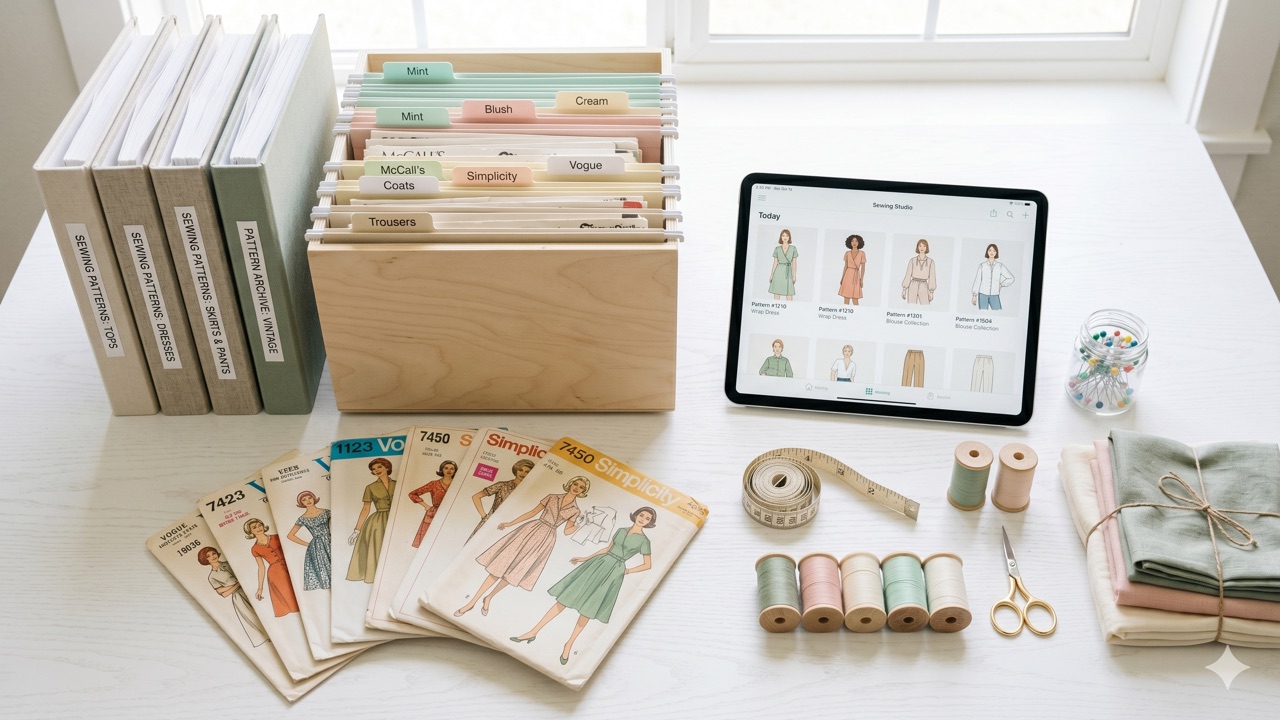
Sewist Studio's Pattern Library is built around this model. Upload the PDF (or scan a paper envelope with the AI pattern scanner), tag it with garment type, designer, fabric, sizes, and views, and the pattern becomes a searchable database entry accessible from your phone, tablet, or laptop.
- Bulk upload — drag in a ZIP of indie patterns at once.
- Auto-tagging — the AI fills in brand, number, sizes, views, and suggested fabric types from the envelope or instruction page.
- Tablet-friendly — open the instructions at the cutting table from any device.
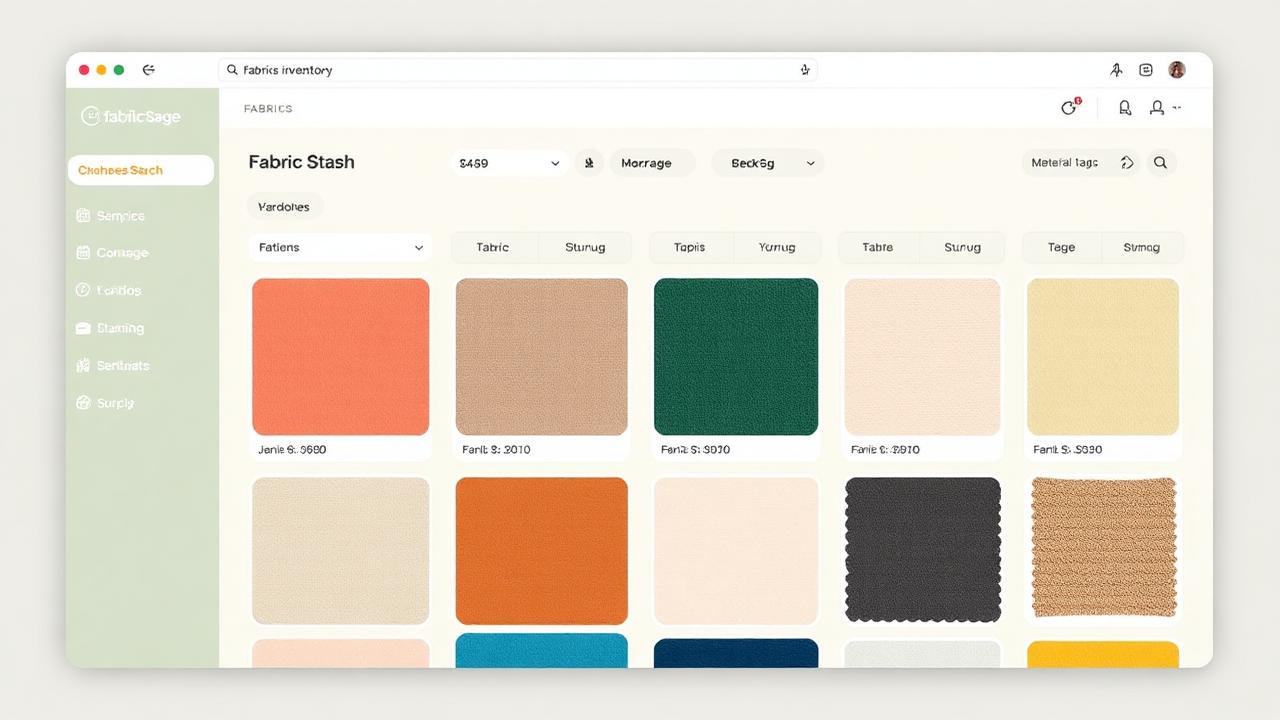
- Tied to your stash — link a pattern to fabric in your fabric stash and the AI can suggest projects from what you already own.
A starter setup in one afternoon
1. Create your free Sewist Studio account.
2. Spend 30 minutes adding your 10 most-used patterns. Drag the PDF in, tag the basics, save.
3. Add the next 20 over the following week as you reach for them. Don't try to catalog everything at once — catalog what you actually use first.
4. The next time you buy a PDF pattern, upload it the same day. Two minutes per pattern is the price of never losing one again.
After 50 patterns, you'll never go back to folders.
Frequently asked questions
What's the best way to store PDF sewing patterns?
A library app where each pattern is a tagged, searchable record with the file attached — not a folder.
How do I find a PDF pattern I bought months ago?
Tag every pattern by designer, garment type, fabric, and seam allowance when you save it. Search across tags.
Should I print every PDF pattern I buy?
No. Print only when you're about to cut, and track print status to avoid re-printing.
Can I access PDF patterns from my phone or tablet?
Yes — store them in a cloud-synced library so the file follows you to the cutting table.
How does Sewist Studio organize PDF patterns?
One database entry per pattern with file, envelope image, tags, sizes, views, fabric, and print status. Searchable from any device.