How to Organize Embroidery Design Zip Downloads
Zipped, unzipped, all jumbled together in Downloads? Here's a two-minute routine for every embroidery download, plus how to rescue a folder that's already a mess.
Why embroidery downloads get so messy
Embroidery designs almost always arrive as zip files, and the zips make the mess:
- One design comes in eight formats (PES, DST, JEF, EXP, VP3, HUS, XXX, PEC), plus a PDF color sheet.
- Bundles hold dozens of designs, sometimes as zips inside the zip.
- Fonts arrive as one file per letter per size.
- Downloads land in one folder with names like `download (3).zip`.
Unzip a few of those without a plan and you get exactly what one Sewist member described to us: zipped and unzipped files all jumbled together, no categories, and a long search every time.
The two-minute routine for every download
Do this as soon as a download finishes, while you still remember what it is.
- Unzip into a named folder. On a Mac, double-click the zip. On Windows, right-click it and choose Extract All. Rename the new folder after the design or bundle: `Christmas Gnomes`, not `download (3)`.
- Open nested zips. If there's a zip inside, unzip that too, into the same folder.
- Keep your formats. Keep your machine's format (PES for Brother and Baby Lock, JEF for Janome, VP3 for Husqvarna Viking and Pfaff) plus DST as a backup. Delete the rest. Keep the PDF color sheet if there is one.
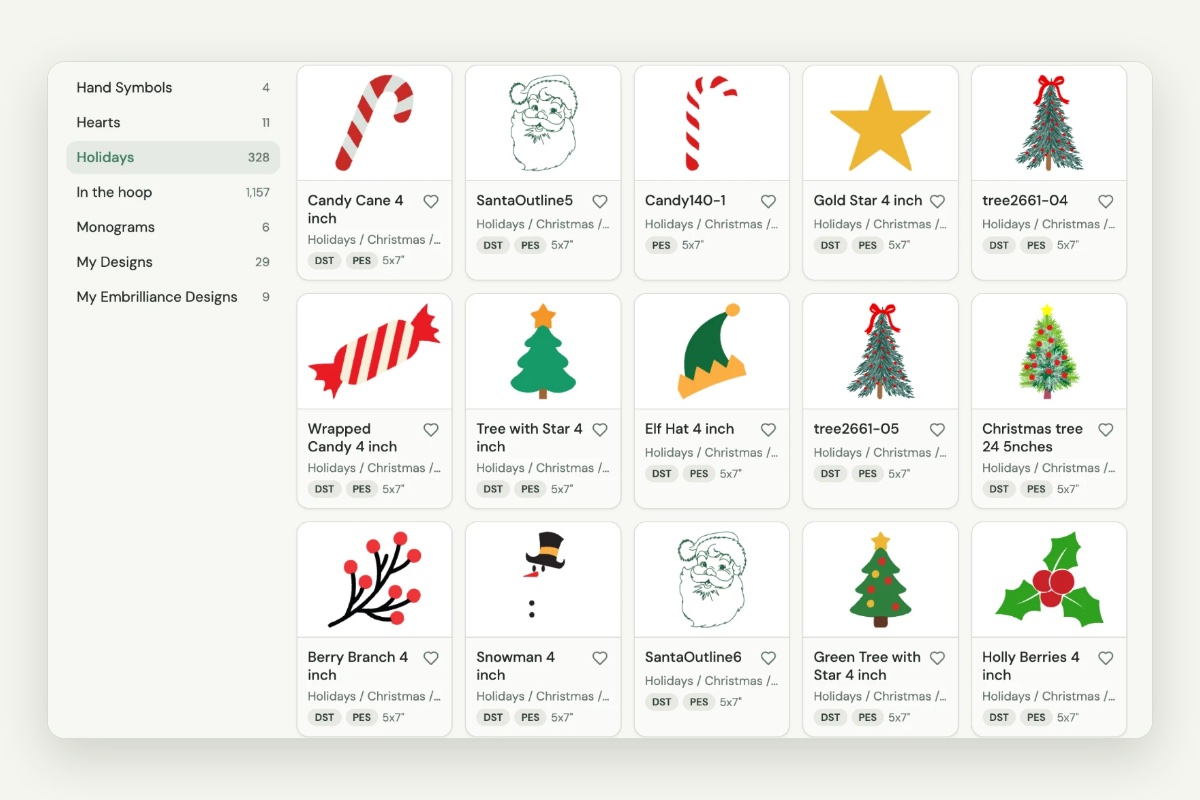
- File it. Move the folder into the right subject folder in your main library, for example `Embroidery Designs/Holidays/Christmas/Christmas Gnomes`.
- Delete the zip. Once the files are filed, the zip is a duplicate.
If you don't have a main library yet, set one up first: see how to organize machine embroidery designs.
Rescue a Downloads folder that's already a mess
If you have hundreds of zips and loose files, don't sort them one at a time:
- Make a holding folder called `To sort` inside your embroidery library.
- Move every embroidery zip and loose design from Downloads into it. Sort Downloads by type and drag all the .zip, .pes, .dst and similar files at once.
- Unzip everything. On a Mac, select all the zips and double-click; on Windows, extract them one by one or use a free tool like 7-Zip to extract many at once.
- Delete the zips once they're extracted.
- Sort in batches. Make your subject folders, then drag whole designer or bundle folders into them. Fifteen minutes a day gets through a big backlog in a week.
Special cases
- Fonts: one folder per font, one subfolder per size: `Fonts/Script/2 inch`. That's how you'll look for them.
- Embrilliance BX files: a BX file is an installer, not a stitch file. Install it in Embrilliance, then keep the BX in `Fonts/BX installers` so you can reinstall later.
- Machine-specific folders: if a zip has folders like `PES`, `DST` and `JEF`, keep just the one you use and flatten it into the design folder.
- Duplicates: if you download the same bundle twice, keep the newer folder. See how to stop buying the same embroidery design twice.
See everything you've filed
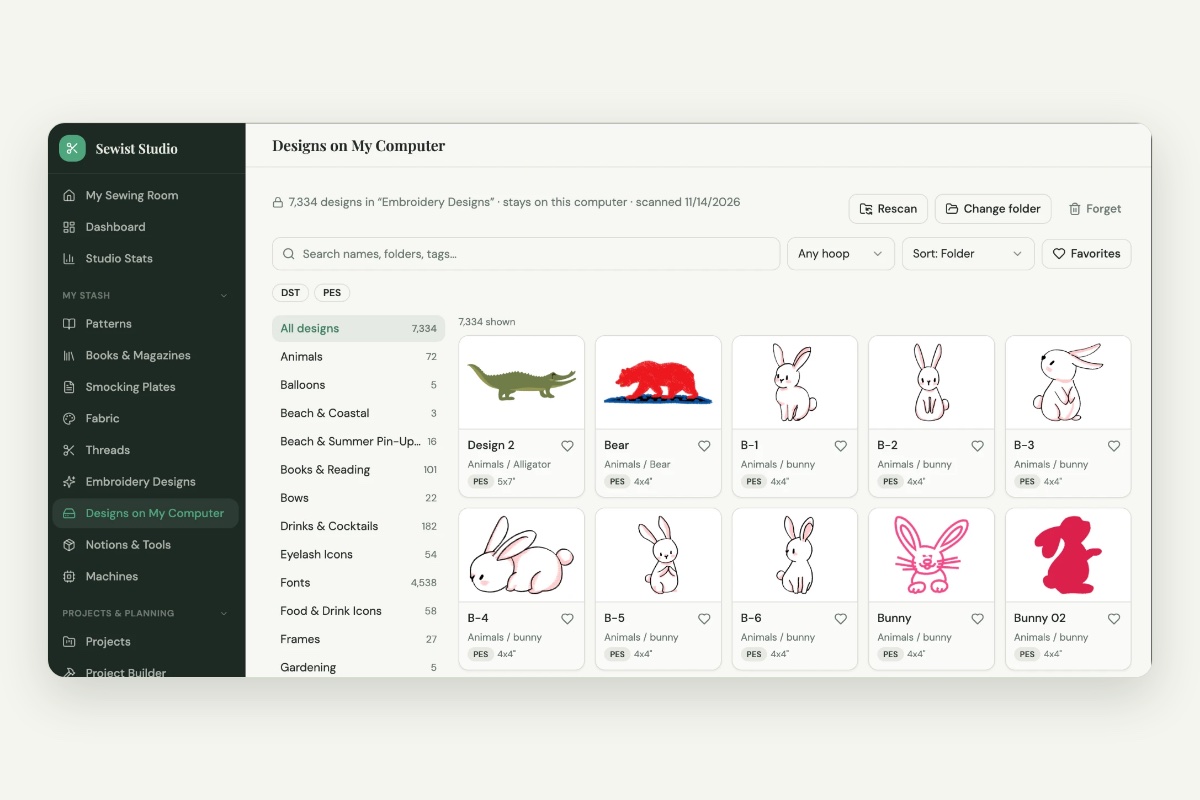
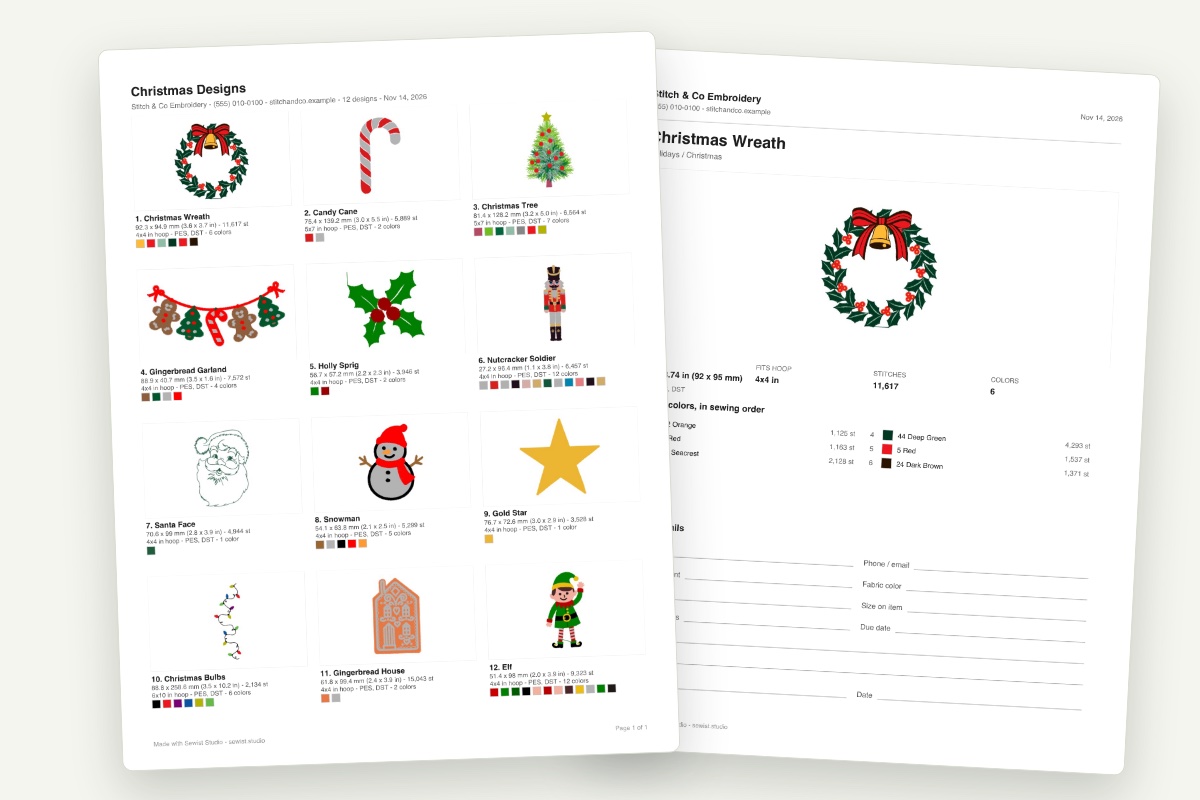
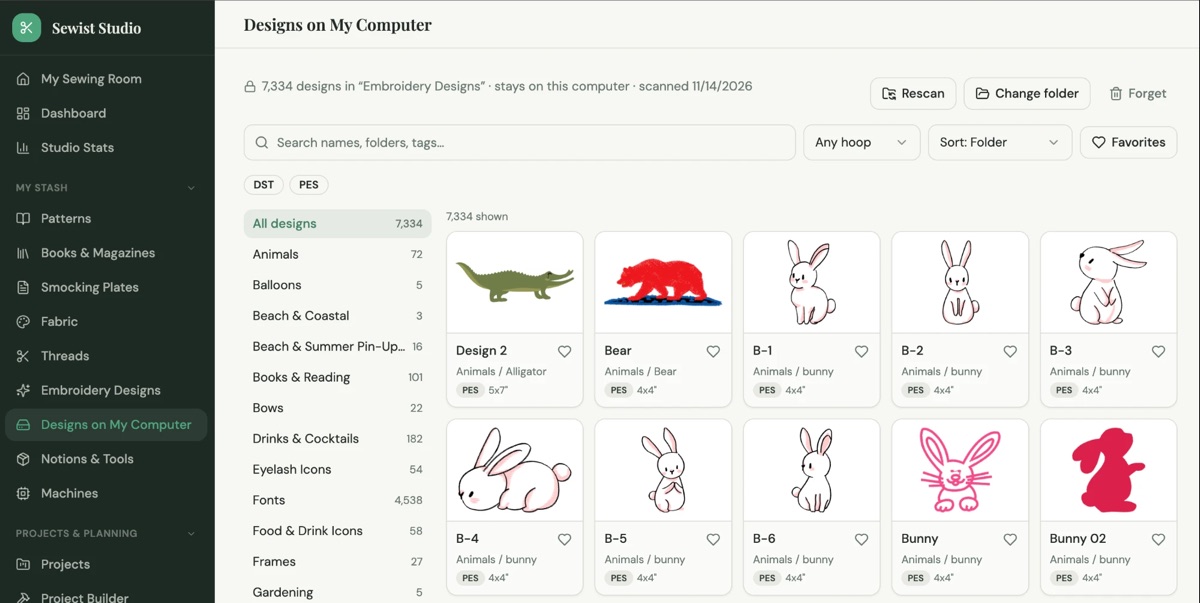
Your computer still shows a blank icon for PES and DST files, so even a tidy library is hard to browse. Designs on My Computer in Sewist Studio turns your embroidery folder into an organized, searchable, filterable catalog in your browser: your folders become categories, every design gets a stitch preview, and you can search by name and filter by hoop size or format.
It reads the design files themselves, so unzip first; it skips zips and macOS junk files. Your files never leave your computer. It's part of Sewist Studio Pro, with a 14-day free trial.
Checklist
- Unzip into a folder named after the design.
- Open any zip inside the zip.
- Keep your machine's format plus DST.
- File it under a subject folder.
- Delete the zip.