How to See Your Dress Move Before You Sew It
What a 5-second AI video of your planned garment can and cannot tell you about drape, swing and the back view.
You can see a dress move before you sew it with a short AI video preview. You start with a still image of the planned garment in your fabric, and the AI animates it into a brief clip that turns the figure, so you see the garment from more than one side and get a sense of movement.
In Sewist Studio, a browser-based app for your patterns and fabric stash, this is the "Make it move" button in the Visualizer. This post explains what it makes, how long it takes, what it is good for, and what it cannot tell you.
What does "Make it move" make?
It turns a Visualizer still into a 5-second vertical video using Runway Gen-4.5. If the still shows you wearing the garment, the video turns you. If it shows a dress form, the dress form rotates.
A few specifics:
- Length: 5 seconds.
- Shape: vertical, which suits a full-length garment and a phone screen.
- Time: about 2 minutes to make.
- Cost: counts as one render.
Gen-4.5 is used only for the video here. The still image comes from the Visualizer first, built from your pattern envelope, pattern pieces and fabric photos as references. If you have not made a still yet, start with how to see fabric on a sewing pattern before cutting.
How do I make a video preview?
Make a still you are happy with, then press "Make it move" and wait about 2 minutes. The order matters, because the video starts from the still.
1. Open the Visualizer and pick a pattern and a fabric from your stash.
2. Choose Photo style if you want the most realistic motion. A sketch can be animated, but motion reads more clearly on a realistic image.
3. Add "Your photo" if you want to see it on you. The video will then turn you instead of a dress form. Photo tips are in virtual try-on for sewing projects.
4. Render the still and check it. If the print scale or color is off, fix that first. Animating a wrong still just gives you a moving wrong still.
5. Press "Make it move." In about 2 minutes you have a 5-second vertical clip.
What is a video preview good for?
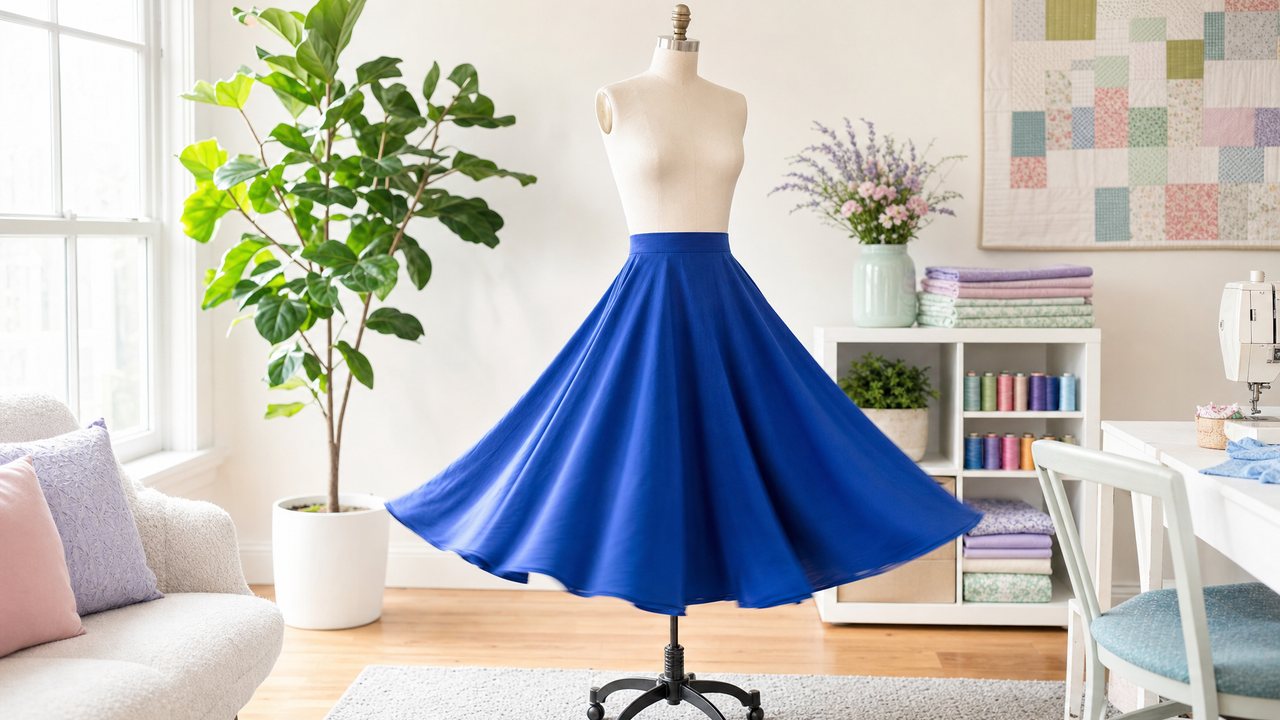
It is best for garments where movement is the point: skirts, wide legs, sleeves and anything cut on the bias. A still image of a circle skirt and a still of a pencil skirt can look similar in a flat photo. In motion, they behave nothing alike.
Use it to get a feel for:
- Swing and sweep. A full circle skirt in rayon challis versus a gathered dirndl in quilting cotton.
- The back and sides. A turning figure shows a low back, a bow, a back yoke or a gathered panel that a front view hides.
- Volume. Whether a puff sleeve or a tiered skirt looks playful or overwhelming from different angles.
- Pattern direction. Whether a one-way print or a stripe still reads well as the figure turns.
What can it not tell me?
It cannot tell you how your specific fabric actually drapes. The video is an AI interpretation of motion, not a physics simulation of your cloth, so a stiff cotton twill and a fluid viscose may not behave on screen exactly as they would on your body.
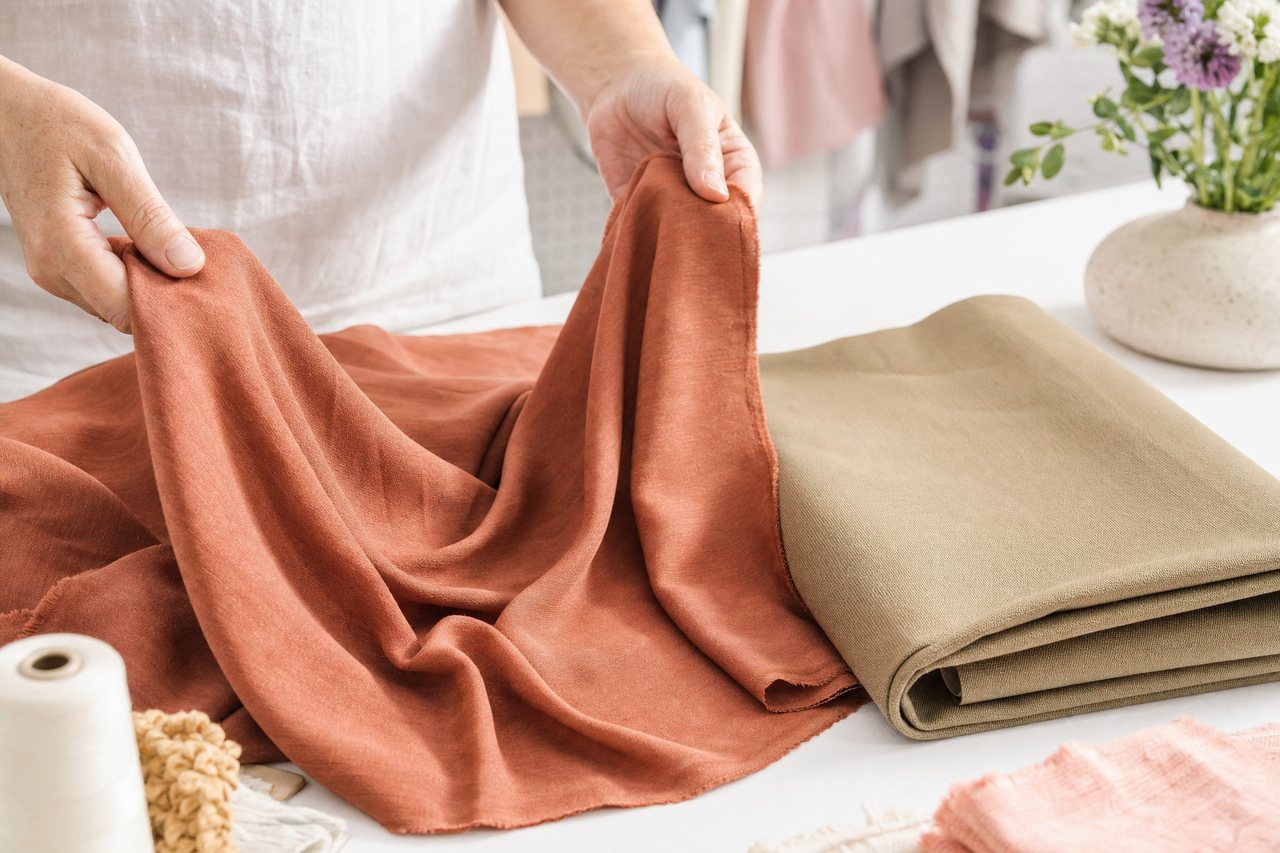
To check real drape, do it by hand. Hold a length of fabric up by one corner and let it fall, or gather a yard in your hand and watch whether it pools or holds its shape. The video is for looking; your hands are for deciding.
Also keep in mind:
- It is 5 seconds, so it is a glimpse, not a runway walk.
- It starts from one still, so any mistakes in the still carry over.
- It does not show fit.
How is this different from "Try it on in motion"?
"Make it move" animates a still that the AI made. "Try it on in motion," in Cut Line Studio, starts from a real phone clip of you moving and dresses you in the planned look while keeping your real room and motion.
| Make it move | Try it on in motion | |
|---|---|---|
| Where | Visualizer | Cut Line Studio |
| Starts from | A Visualizer still | Your own ~5-second phone clip (up to 60MB) |
| Runway model | Gen-4.5 | Aleph (video-to-video) |
| Motion | Turns the wearer or rotates a dress form | Your real movement in your real room |
| Cost | One render | One render |
If you want to see a planned color-blocked look on your own moving body, read how to try on a sewing project in motion.
Do I need Pro?
Yes. The Visualizer and "Make it move" are Pro features. Pro is $4.99/month or $47.88/year, with a 14-day free trial, and includes 3 renders a month across all render features. After that, each render costs 3 purchased credits, and credits are refunded if a render fails.
A video counts as one render, the same as a still. So a still plus its video uses two.
Videos and stills are kept in private storage and returned as signed links that expire after 24 hours, so download the clip if you want to keep it.
Try it
Choose the pattern in your stash with the most movement, a circle skirt or a full-sleeved dress, and a fabric you have been saving for it. Make a 5-second video preview of your garment in the Visualizer, or start a free account and see the complete guide to AI sewing tools. For more on choosing fabric with the right drape, see matching fabric to a sewing pattern.