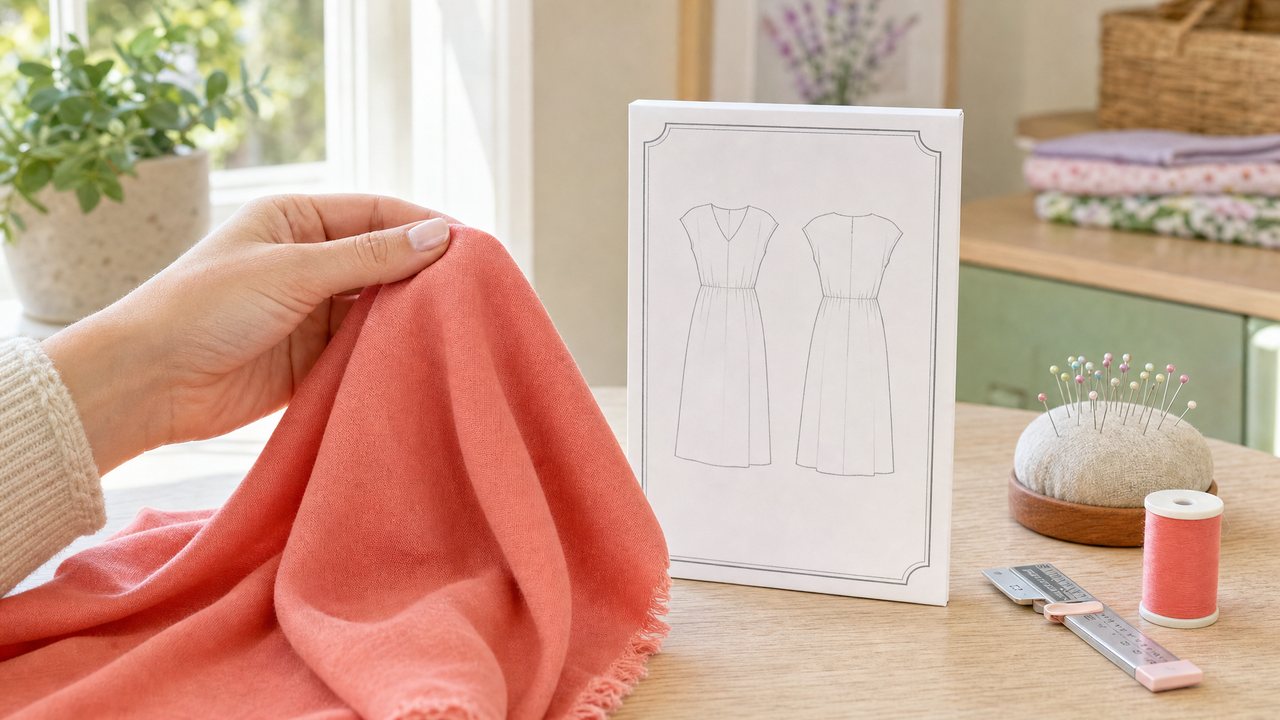
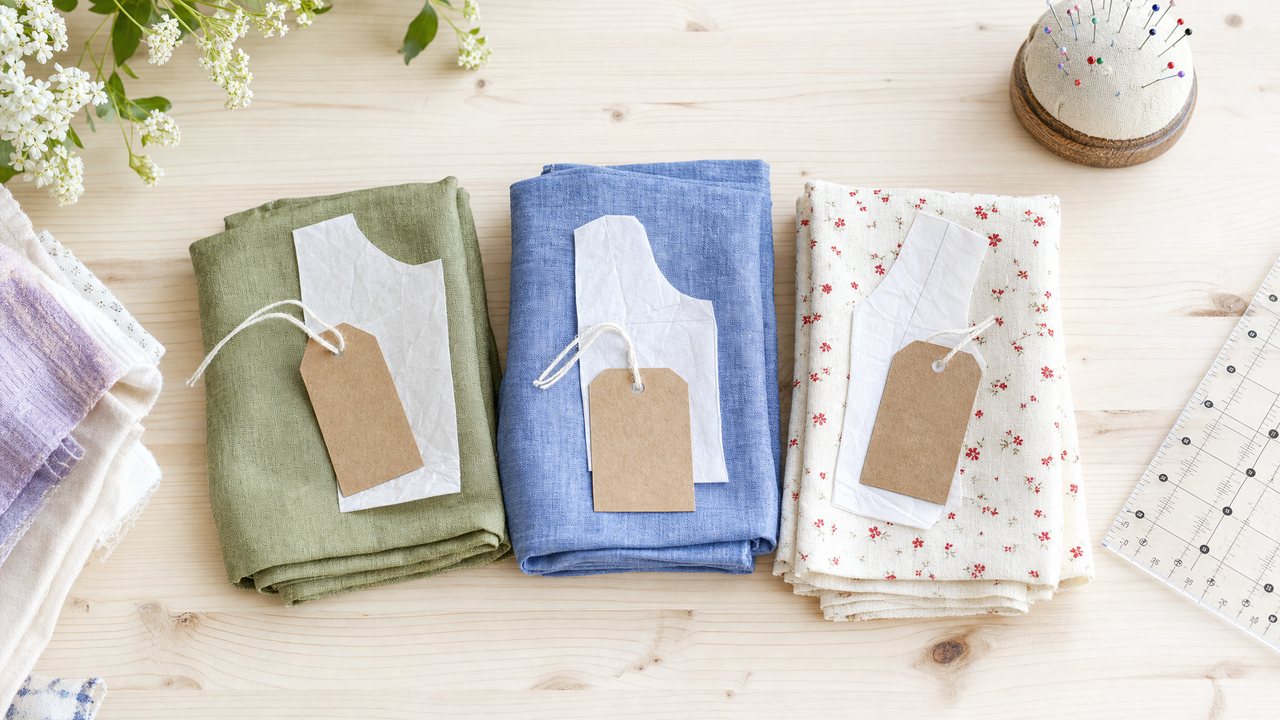
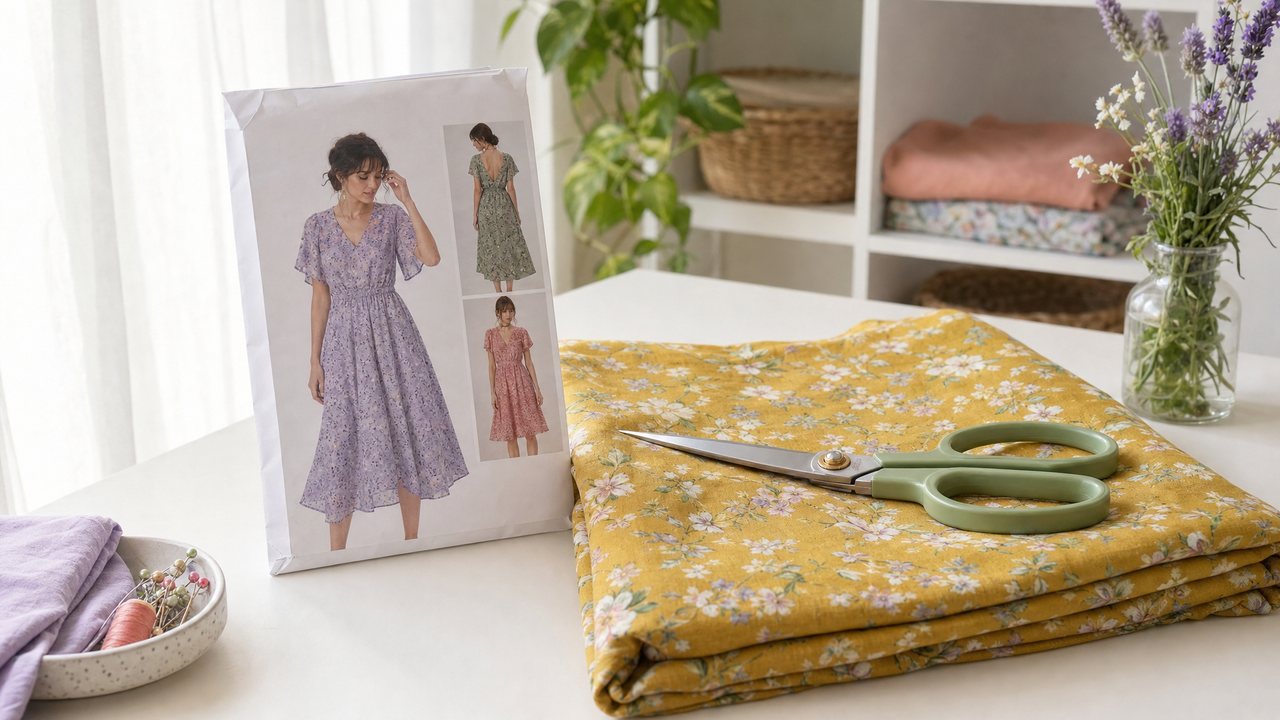
AI Sewing Tools: What Each One Does and When to Use It
A plain guide to every AI tool in Sewist Studio, from fabric previews and motion try-on to a live sewing coach, with what each costs and when to use it.
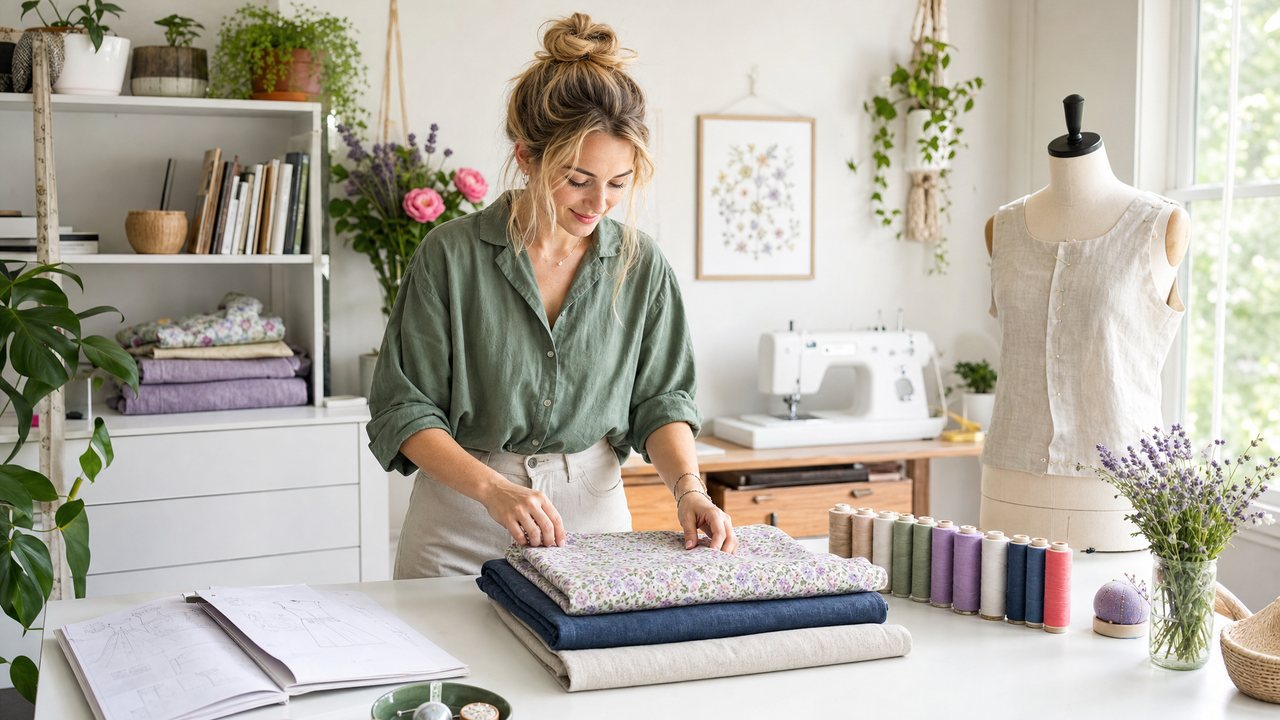
AI sewing tools are most useful when they work from what is actually on your shelves: your pattern envelopes, your fabric photos, your yardage. Used that way, they answer the questions that usually cost you fabric: will this print look right on this pattern, do I have enough, which pattern suits this cloth, and what will it look like on me.
This guide covers every AI tool in Sewist Studio, a browser-based digital sewing room for patterns, fabric, thread, notions and projects: what you give each one, what you get back, what it costs, and when to use it. Limitations are stated plainly.
What AI tools does Sewist Studio have?
There are twelve AI tools, grouped by the job they do: seeing a garment before you cut it, copying a look, choosing patterns and fabric, and getting help while you work. Here is the whole set in one table.
| Tool | What you give it | What you get back | Plan |
|---|---|---|---|
| Visualizer | A pattern and a fabric from your stash, optional photo of you | One image of the finished garment (Photo, Flat or Sketch), optional 5-second video | Pro (render) |
| Cut Line Studio | A blouse, dress, tee, shirt, shorts or skirt, plus a stash fabric per panel | A color-blocked look painted with your real fabric photos, a render, an optional motion try-on video | Sign in to plan, renders on Pro |
| Recreate This Look | Up to 8 inspiration photos | A breakdown of the garment's parts matched to your patterns and fabric, a side-by-side Stash Version render, per-part flat sketches | First 3 analyses free, render on Pro |
| Mood Board | A text prompt and up to 3 vibe images | 1 to 6 mood images | Pro |
| AI Ideas | A fabric, a pattern, or a thread question | A pairing recommendation with a drawing of the top match, or 2 to 3 thread palettes | Pro |
| Pattern Mashup | Several patterns | One combined design with construction notes, plus an illustration in your fabric | Pro |
| Stash Planner | Your fabric stash | Feasible projects per fabric based on yardage, each drawable as a sketch | Pro |
| Pattern Finder | Up to 8 garment photos | Ranked sewing patterns from the web with shop photos | Pro |
| Semantic search | A description like "floaty summer dress" | Matching patterns from your own library, plus similar patterns | Pro |
| Photo Scanner | A photo of a pattern envelope, fabric or notion | The item's details, filled in for you | Pro |
| Wren, the sewing coach | Your voice, and optionally your camera | A live, talking video call that knows your project | Sign in: 1 free call, unlimited on Pro |
| Smocking Plate Analyzer | A smocking plate | An analysis of the plate | Free, public |
Why do these previews look like my fabric and not generic AI art?
Because your real photos go in as references. Your pattern envelope photo, any clipped pattern pieces and your fabric photos are tagged and sent as reference images, and the text prompt only describes how they relate.
That replaced an older approach that turned item details into a written prompt, which produced generic "AI slop." The full explanation is in why AI sewing images look fake, and how reference-first fixes it.
Print scale gets the same care. Each fabric's print type, bolt width and print repeat from your stash are used to keep the print at true scale, so a small ditsy floral does not come back as a giant one. If you are wondering whether a general chatbot can do the same job, there is an honest comparison in ChatGPT vs Sewist Studio for fabric previews.
How do I see a finished garment before cutting?
Use the Visualizer: pick a pattern and a fabric from your stash, choose Photo, Flat or Sketch, and choose Best or Fast quality. You get one image of the finished garment in that fabric.
The step by step is in how to see fabric on a sewing pattern before cutting. Two options build on it:
- Your photo ("On you"). Add a photo of yourself and the garment is put on you, keeping your face, hair and body, instead of on a dress form. See virtual try-on for sewing projects on your own photo.
- Make it move. Turn the still into a 5-second vertical video made with Runway Gen-4.5. It takes about 2 minutes and counts as one render. See AI video previews for handmade garments.
How do I plan a color-blocked garment?
Use Cut Line Studio. Choose a blouse, dress, tee, shirt, shorts or skirt, then assign a stash fabric to each panel. Panels are painted with the actual fabric photo, not a flat color swatch.
You can type commands to change the canvas, such as swapping one panel's fabric, render the look, and share it by link. The walkthrough is in the color block sewing planner guide.
With "Try it on in motion," you film about 5 seconds of yourself moving (clips up to 60MB) and Runway Aleph dresses you in the planned look, keeping your real room and motion. More in how to try on a sewing project in motion.
How do I copy a look from a photo?
Use Recreate This Look. Upload up to 8 inspiration photos and the AI breaks the garment into parts, then matches each part to a pattern and fabric in your stash. Your first 3 analyses are free.
From there, "Render My Stash Version" makes a Stash-Adapted Twin: a render shown side by side with the inspiration photo. It is explained in how to recreate a look with fabric you own. If you are starting from a store-bought dress, the full method, from inspiration to yardage, is in how to dupe a designer dress with fabric you already own.
It can also draw a technical flat sketch for each part; see AI technical flat sketches for sewing. To find a commercial pattern from a photo, see recreating any garment with the AI pattern finder.
How do I find the right pattern?
There are three tools, depending on where the pattern lives. Pattern Finder searches the web, semantic search looks through your own library, and AI Ideas pairs a pattern to a fabric.
- Pattern Finder takes up to 8 garment photos, searches the web for matching sewing patterns and ranks them, showing each shop listing's own photo for the top results (up to 18). It does not generate images.
- Semantic search finds patterns you already own by meaning, like "floaty summer dress." See finding sewing patterns with AI search.
- AI Ideas, pattern-for-fabric mode tells you which pattern suits a fabric and draws the top match. See what pattern should I use for this fabric.
If your patterns are not catalogued yet, the Photo Scanner reads a pattern envelope photo and fills in the details for you. It is covered in cataloging sewing patterns with the AI photo scanner.
How do I choose thread for a fabric?
Use thread mode in AI Ideas. It returns 2 to 3 thread palettes with hex colors and prefers threads you already own. A thread palette costs 1 credit and does not make an image.
The human rules (match or contrast, one shade darker) are in what color thread to use for your fabric.
How do I combine several patterns into one design?
Use Pattern Mashup. It combines elements from several patterns into one design with construction notes, fabric recommendations and similar commercial patterns.
The mashup illustration uses your clipped PDF pattern piece or envelope photo plus your fabric, in photo, flat or sketch style, with a share link. See how to visualize a pattern mashup before sewing.
What can I make with the fabric I already have?
Use the Stash Planner. It suggests feasible projects for each fabric based on its yardage, in your units, and each suggestion can be drawn as a sketch from its pattern and fabric photos.
How that works is in AI sketches of Stash Planner projects. For more on planning from your shelves, see using AI to plan a sewing project from your fabric stash.
How do I make a sewing mood board?
Use Mood Board. Write a prompt, add up to 3 loose vibe images, and choose 1 to 6 variations and an aspect ratio. It is for mood and direction, not your exact fabric; use the Visualizer for that. More in the AI sewing mood board generator guide.
Virtual sewing coach: can I talk to someone while I sew?
Yes. Wren is a live, talking video-call avatar built with Runway Characters. Wren knows your current project, including the pattern, size and fabrics, in your units, and can look up your stash during the call.
You need to sign in. Free accounts get 1 call, Pro has unlimited calls, and each call ends after 5 minutes. Details are in the AI sewing coach live video call guide. If you are weighing it against other ways to learn, see virtual sewing coach vs a sewing class.
Turn on your camera with "Show Wren your fabric" and Wren can see what you hold up. For good questions to ask that way, see 12 questions to ask an AI sewing coach about your fabric.
Two more guides put Wren to work. Beginners can follow how to sew your first garment with a virtual sewing coach, stage by stage. If a seam has gone wrong, how to fix sewing mistakes with live help covers puckers, wavy knit hems, skipped stitches and what a coach can and cannot diagnose on camera.
Do the AI tools work in centimeters?
Yes. One imperial/metric switch in Account Settings changes how every measurement is shown and entered. The AI features answer in your units, including pairing, Recreate This Look, ideas, the Visualizer, the Stash Planner and Wren.
If you sew in metres, read the metric sewing app guide.
What is free, what is Pro, and what costs credits?
Most AI tools need a signed-in Pro account or a free trial. Pro is $4.99/month or $47.88/year (works out to $3.99/month), with a 14-day free trial.
- Free without Pro: your first 3 Recreate This Look analyses, 1 call with Wren (sign-in required), and the public Smocking Plate Analyzer.
- Renders (generated images and videos, such as Visualizer images, Make it move videos, motion try-ons and Stash Version renders): Pro includes 3 a month across all render features, then each render costs 3 purchased credits. If a render fails, the credits are refunded.
- Other AI calls: Pro includes 30 a month, then 1 credit each.
- Privacy: renders and photos are kept in private storage and returned as signed links that expire after 24 hours.
Which AI tool should I use for my project?
Start from the question you are trying to answer. This checklist maps common questions to the right tool.
- "Will this fabric look good as this pattern?" Visualizer.
- "Will it look good on me?" Visualizer with Your photo.
- "How will the skirt move?" Make it move.
- "Which of my fabrics go together in panels?" Cut Line Studio.
- "Can I make that dress I saw?" Recreate This Look.
- "Which pattern is that?" Pattern Finder.
- "Do I already own something like it?" Semantic search.
- "What should this fabric become?" AI Ideas or Stash Planner.
- "What thread?" AI Ideas thread mode.
- "Can I combine these two patterns?" Pattern Mashup.
- "What is the overall feel of my next collection?" Mood Board.
- "I am stuck mid-project and want to ask someone." Wren, the virtual sewing coach.
What are the limitations?
An AI preview is an informed guess, not a test garment, so a scrap test still matters. The practical limits: reference photos are capped at 5MB each, motion videos are 5 seconds, motion try-on clips are capped at 60MB, Wren calls end after 5 minutes, and renders beyond your monthly 3 cost credits. Better photos give better results, because the photos are the references.
How were these tools built?
Sewist Studio is built by one person, Sabrina Dowling. The image and video work was built for the Runway hackathon in San Francisco on September 30, 2026, and the story of what broke and what fixed it is in how we built AI garment previews with Runway.
For how the AI tools sit alongside your stash and projects, see the digital sewing room complete guide.
Try it
The fastest way to see what these tools do is to run one on a fabric you already own. Create a free account, add one pattern and one fabric with clear photos, then preview that fabric on that pattern in the Visualizer. Compare Free and Pro plans when you are ready for renders.