How to Use a Sewing App in Metric (Centimeters and Meters)
Many sewing tools convert a few number fields and leave the rest in yards. Here is what a full metric setting looks like, AI answers included.
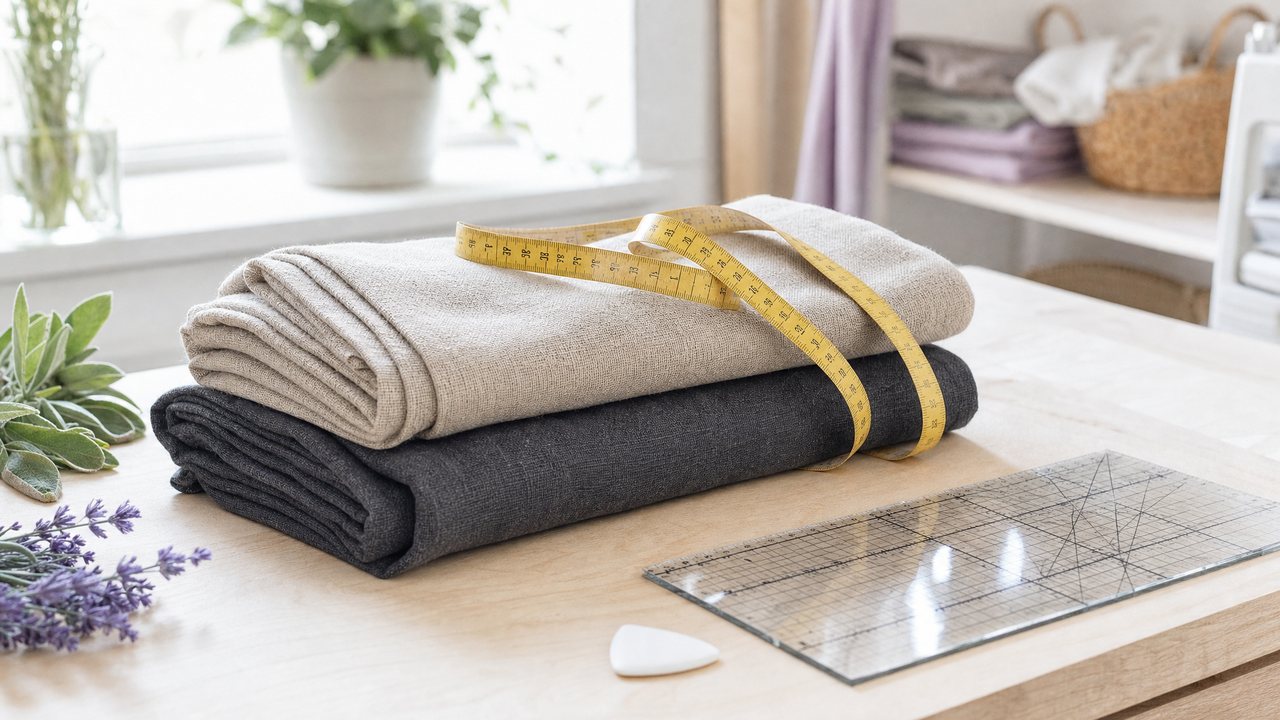
If you sew in meters and centimeters, you need more than a converter. You need an app where your stash, your measurements and the AI answers all speak the same units. Sewist Studio does this with a single imperial or metric switch in Account Settings.
Flip it once and the app displays and accepts metric everywhere, and the AI features answer in your units as well. This is written for sewists in the UK, Europe, Australia and anywhere else where yards feel like a foreign language.
Where is the metric switch?
It is in Account Settings, and there is only one. You do not set units per fabric or per tool.
1. Open Account Settings.
2. Find the units setting and choose metric.
3. Go back to your stash. Lengths and widths now show in meters and centimeters.
That is the whole setup. You can switch back at any time.
What changes when you switch to metric?
Display and input both convert, while your stored data stays the same underneath. That means switching never rewrites or rounds away your records.
In practice:
- Fabric lengths show in meters and widths in centimeters, and you type new ones the same way.
- Body measurements show and are entered in centimeters.
- AI answers use your units (more on that below).
Because storage stays canonical, you can flip the switch to check a number in inches for an American pattern, then flip it back. Nothing is lost in between.
Which AI features answer in your units?
All the AI features that talk about lengths and amounts follow the switch. That covers:
| Feature | What follows your units |
|---|---|
| AI Ideas and pairing | Recommendations that mention how much fabric a pattern needs |
| Recreate This Look | The breakdown of a garment matched to your patterns and fabric |
| Project ideas | Suggested makes and the amounts they mention |
| Visualizer | Answers about your pattern and fabric, in your units |
| Stash Planner | Feasible projects for each fabric, judged against its length |
| Wren, the sewing coach | Your current project, spoken in your units on the call |
The Stash Planner is a good example. It suggests projects per fabric based on how much you have, so if you saved a 2.5 m length of linen, its suggestions are reasoned in meters, not yards. See how it works in what you can make from your fabric stash, sketched.
Wren is the live video-call coach. It knows your current project, including pattern, size and fabrics, in your units, and it can look up your stash during the call. If you ask whether you have enough fabric, the answer comes back in meters. More on that in the AI sewing coach guide.
Numbers vs prose: why both matter
A unit setting has to reach two places: the number fields and the sentences. Plenty of tools convert the first and forget the second.
Number fields are the easy part. A yardage field that converts on display is just arithmetic.
Prose is harder. When an AI writes "you will need about two yards for the skirt," converting the number fields does nothing for that sentence. Sewist Studio tells the AI your unit preference, so the written recommendations use meters and centimeters too. You are not left translating a mix of units in your head while you stand at the cutting table.
Quick metric reference for sewists
These are standard conversions, handy when you work from an imperial pattern envelope. Rounded values are the ones most sewists use.
| Imperial | Metric (approx.) | Where you see it |
|---|---|---|
| 1 yard | 0.91 m | Fabric lengths |
| 1/4 yard | 23 cm | Small cuts, fat quarters |
| 45 in wide | 114 cm | Quilting cotton, lawn, many apparel fabrics |
| 54 in wide | 137 cm | Many linens and home dec fabrics |
| 60 in wide | 152 cm | Many knits and wools |
| 5/8 in seam allowance | 1.5 cm | Common on commercial patterns |
| 1 in | 2.54 cm | Everything else |
When you buy fabric by the meter, remember that a meter is a little longer than a yard. A pattern that asks for 2 yards needs about 1.85 m, so 2 m gives you a small margin.
Tips for UK, EU and Australian sewists
A few habits make metric work smoothly:
- Record fabric in the unit it was sold in. If a shop cut you 1.5 m, type 1.5 m. Conversion handles the rest.
- Measure the width yourself. Listed widths are often rounded, and a few centimeters matters when a pattern piece barely fits. This guide to measuring fabric yardage covers both length and width.
- Keep your measurements current. Enter body measurements in centimeters once, and they stay in centimeters wherever you see them.
- Check American patterns in imperial if needed. Flip the switch, read the envelope numbers side by side, flip back.
For a fuller look at keeping a fabric catalog, see the best way to track your fabric stash. To see which pattern suits a fabric you have measured, read what pattern to use for this fabric. For every AI tool in one place, see the complete guide to AI sewing tools.
What you should know before you start
The AI features need a signed-in Pro or trialing account. Pro is $4.99 a month or $47.88 a year, with a 14-day free trial. A few tools have free starts: the first 3 Recreate This Look analyses are free, and free accounts get 1 call with Wren.
Try it
Set your units once, then ask the AI a question about a real fabric. Switch Sewist Studio to metric in Account Settings, or create a free account first. See what Pro adds on the pricing page.